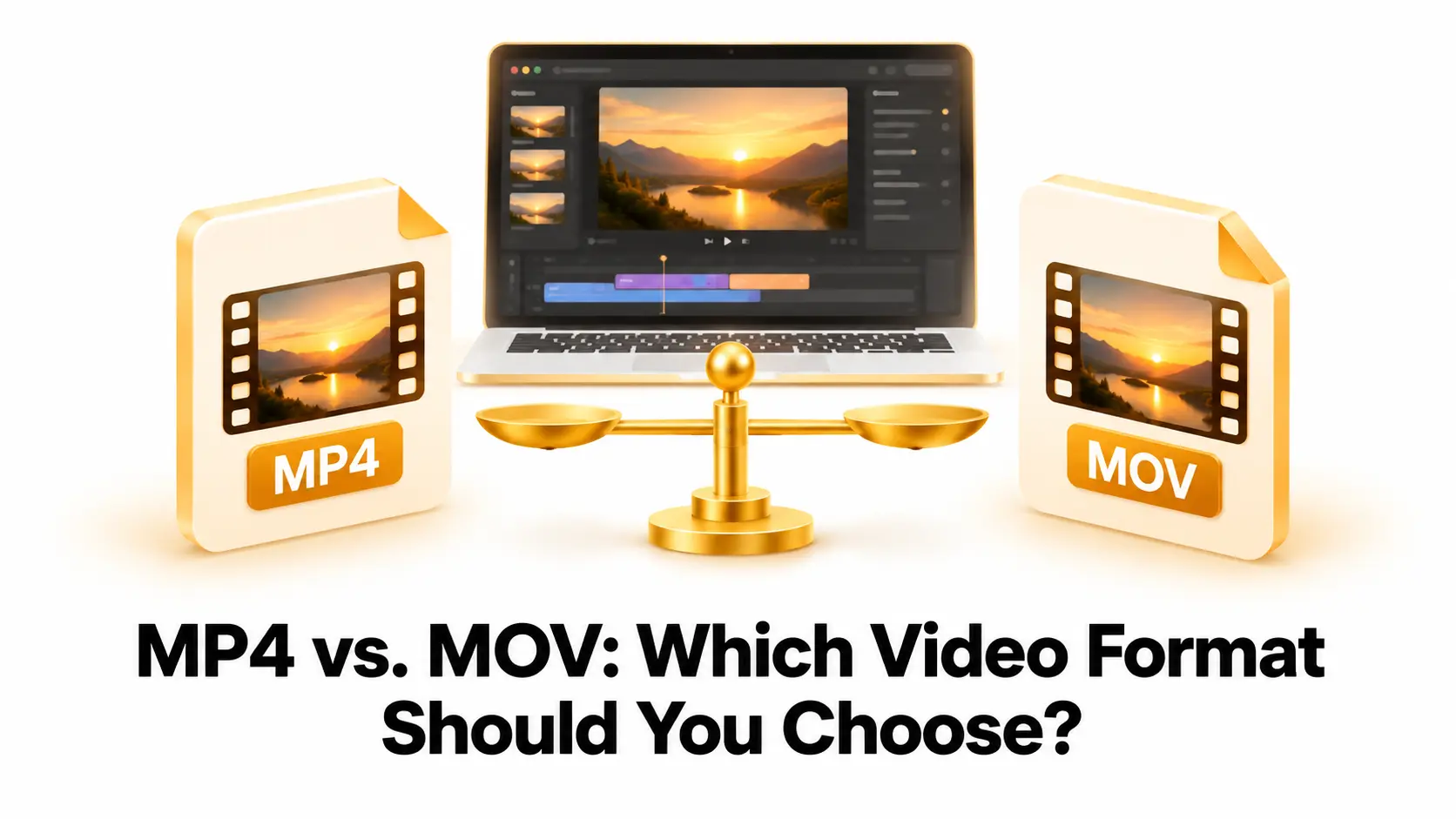
MP4 and MOV are two popular video file formats. You may see them when recording on a phone, exporting from an editing program, sharing a video online, or saving footage for later. Both can store video, audio, subtitles, and other information, but they are used in different situations.
MP4 is often chosen for its broad compatibility with phones, computers, websites, and media players. MOV is closely associated with Apple’s QuickTime technology and is common in video editing and production workflows. However, the file extension alone does not determine the video’s quality or whether a device can play it.
The most important differences depend on the codecs inside each file, the export settings, and what you plan to do with the video. This guide compares MP4 and MOV by quality, compatibility, file size, editing support, and sharing. It will help you choose the format that fits your project.
What Is MP4?
MP4, short for MPEG-4 Part 14, is a multimedia container format. A container is like a package that can hold video, audio, subtitles, and metadata in one file. The video and audio inside the MP4 use codecs, which are methods for encoding and decoding media.
H.264 video with AAC audio is a common combination in MP4 files. It is supported by many phones, computers, browsers, televisions, and video platforms. Other codecs can also be used, so two MP4 files may behave differently even though they share the same extension. You can read more about the format in Wikipedia’s overview of the MP4 file format.
People often choose MP4 when they want a video that is easy to upload, send, or play on a range of devices. It can also be used in editing programs, although the best settings depend on the program and the project.
What Is MOV?
MOV is a multimedia container format developed for Apple’s QuickTime technology. It can store video, audio, text, subtitles, and other media data. MOV files are common in Apple-related workflows, including recordings and exports made with video tools on Mac, iPhone, and iPad.
A MOV file can contain different codecs. Some use compressed codecs designed for convenient playback or sharing. Others use editing-focused codecs, such as Apple ProRes, which can preserve more detail and make editing smoother. ProRes files are often much larger than highly compressed delivery files.
MOV is not limited to Apple devices. Many Windows programs and media players can open it, but support may depend on the codecs inside the file. For more background, see Wikipedia’s page about the QuickTime File Format.
MP4 vs. MOV: Main Differences
The table below gives a general comparison. Actual playback, quality, and file size can vary depending on the codecs and settings used when the video was created.
| Feature | MP4 | MOV |
|---|---|---|
| Common use | Sharing, uploading, and everyday playback | Apple workflows, editing, and production |
| Device support | Very broad support across many devices and platforms | Good support in many apps; may depend more on the codec |
| Typical codecs | Often H.264 video and AAC audio | Can use many codecs, including editing-focused options |
| File size | Often compact when exported with delivery settings | Can be compact or very large, depending on the codec |
| Editing | Suitable for many editing programs and simple projects | Often used in professional and Apple-focused editing workflows |
| Best for | Playback and distribution on many devices | Editing and workflows that need specific codec options |
Which Format Has Better Video Quality?
Neither MP4 nor MOV automatically produces better video quality. Quality depends mainly on the codec, bitrate or quality setting, resolution, frame rate, and the source footage. An MP4 with a high-quality codec can look excellent, and a MOV file with strong compression can look poor. The extension alone does not tell you how good the picture will be.
For example, a MOV file containing ProRes footage may retain more detail during editing than a compact H.264 MP4. That does not mean every MOV file looks better than every MP4. ProRes is an editing codec and can create large files, while H.264 is often used to deliver a smaller file that plays on many devices.
If you are exporting a final video to share online, an MP4 using H.264 is often a practical choice. If you are creating a high-quality master file for additional editing, an editing-focused codec in a MOV container may suit your workflow. Follow the codec and export requirements of the editing software or platform you plan to use.
Which Format Is More Compatible?
MP4 is generally the safer option when you need a video to play across many devices and platforms. It is commonly supported by web browsers, phones, computers, televisions, and social media services. An MP4 made with widely supported codecs such as H.264 video and AAC audio is especially convenient for everyday playback.
MOV files also work on many devices and applications, including programs outside the Apple ecosystem. However, a specific MOV file may not play if the device or software does not support its video or audio codec. If a MOV file will not open, the issue may be the codec inside it rather than the MOV container itself.
If you are unsure which format your audience can play, MP4 is usually a sensible delivery format. For a work team or client, check their editing and playback requirements before choosing. Keeping a high-quality original and exporting a separate MP4 copy can give you both an editing master and a convenient version to share.
Which Format Creates Smaller Files?
The file size is mainly determined by the codec and compression settings, not by whether the extension is MP4 or MOV. A highly compressed MOV can be smaller than an uncompressed or lightly compressed MP4. In everyday use, MP4 files are often smaller because they are commonly exported with delivery codecs and settings intended for sharing.
Editing-focused codecs preserve more information for post-production, which can make the files much larger. Large files take longer to upload and download and use more storage, but they may be useful when you need room for color correction, effects, or additional edits.
When you need a smaller video, select a suitable codec and quality setting rather than changing only the file extension. Lowering the bitrate too much can create visible artifacts, including blocky areas, smearing during motion, and loss of fine detail. Make a short test export and compare the result before compressing an important video.
Which Format Is Better for Editing?
The best editing format depends on your software, computer, and project. MOV is common in Apple-focused and professional workflows, especially when paired with codecs designed for editing. These codecs may be easier for an editing program to work with, but they can use more storage.
MP4 is also suitable for editing in many modern programs. It can be convenient for basic projects and videos that are already in a delivery format. Some highly compressed files may require more processing power during editing, which can make playback or scrubbing less smooth on a less powerful computer.
For a large or complex project, keep the original camera files or an editing master if you can. Export a separate MP4 when the video is finished and ready to send, upload, or play on common devices. This helps you avoid repeatedly editing and re-saving a compressed delivery file.
How to Choose Between MP4 and MOV
Choose a format based on what you will do with the video after exporting. Think about where it will be played, whether it needs more editing, how much storage you have, and whether another person or platform has specified export requirements.
- Choose MP4 when you want broad device compatibility, convenient sharing, or a common format for web uploads.
- Choose MOV when your editing workflow or production team requests it, or when you need a specific editing codec often used with MOV.
- Keep a high-quality master if you expect to make more changes later, then export a separate MP4 for playback and sharing.
- Check codec support when a video does not play. The file extension does not guarantee that the device supports the codec inside it.
- Follow platform instructions when uploading to a service or delivering a project to a client.
For everyday use, MP4 is usually a convenient choice. For editing or production, MOV may be more suitable when the software, client, or selected codec calls for it. Neither option is best for every project.
How to Convert MOV to MP4
If you have a MOV video that needs to play on more devices, you can convert it to MP4. Use a reputable desktop program or a web-based converter. For a browser-based option, visit Convertig and select the relevant video conversion tool if available.
- Keep the original MOV file. Make a copy before converting, especially if you may need to edit the video later.
- Open a trusted converter. Check the available format and codec options before adding a personal or important video.
- Select MP4 as the output format. For broad compatibility, H.264 video with AAC audio is a common starting point.
- Preserve the source resolution and frame rate. Change these only if you need a smaller output or have a specific delivery requirement.
- Choose a suitable quality setting. Avoid very low quality or bitrate settings if you want to keep details clear.
- Convert and check the result. Play the exported file and check the picture, sound, duration, and playback on your target device.
Changing the file extension from .mov to .mp4 does not convert the video. A converter must create the new container or re-encode the streams when needed. If you only need to change the container and the codecs are compatible, a converter may be able to copy the streams without re-encoding them.
Frequently Asked Questions
Is MP4 better than MOV?
It depends on how you will use the video. MP4 is often more convenient for sharing and playback on different devices. MOV is common in Apple and editing workflows. The codecs inside the files also affect compatibility and quality.
Does converting MOV to MP4 reduce quality?
It can, if the video is re-encoded with lossy compression. If the original streams are compatible with the MP4 container and are copied instead, the encoded picture and sound are not recompressed. The result depends on the method and settings used.
Can I play MOV files on Windows?
Many Windows media players and editing programs can play MOV files. Support may depend on the codecs inside a particular file. If it does not play, try a player that supports the codec or convert the video to a compatible MP4.
Is MOV always a larger file than MP4?
No. The codec and compression settings have a much larger effect on file size than the extension. MOV files can be small or large, and MP4 files can also vary in size.
Which format should I use for a website or social media?
MP4 with commonly supported codecs such as H.264 video and AAC audio is a practical choice for many websites and social platforms. Check the platform’s current upload recommendations before exporting.
Can MP4 keep the same quality as MOV?
Yes, the video quality can remain the same if the streams are copied without re-encoding. If the video is re-encoded, the output may lose some quality depending on the codec and settings.
Final Recommendation
Choose MP4 when convenient playback, sharing, and broad device support are your priorities. Choose MOV when your editing or production workflow requires it, or when you need a particular codec available in that workflow. Remember that the container name alone does not determine file quality, compatibility, or size; the codecs and export settings matter too.
If you are unsure, keep the original video as a master and create an MP4 copy for everyday use. That gives you a widely compatible file while preserving the source for future edits.