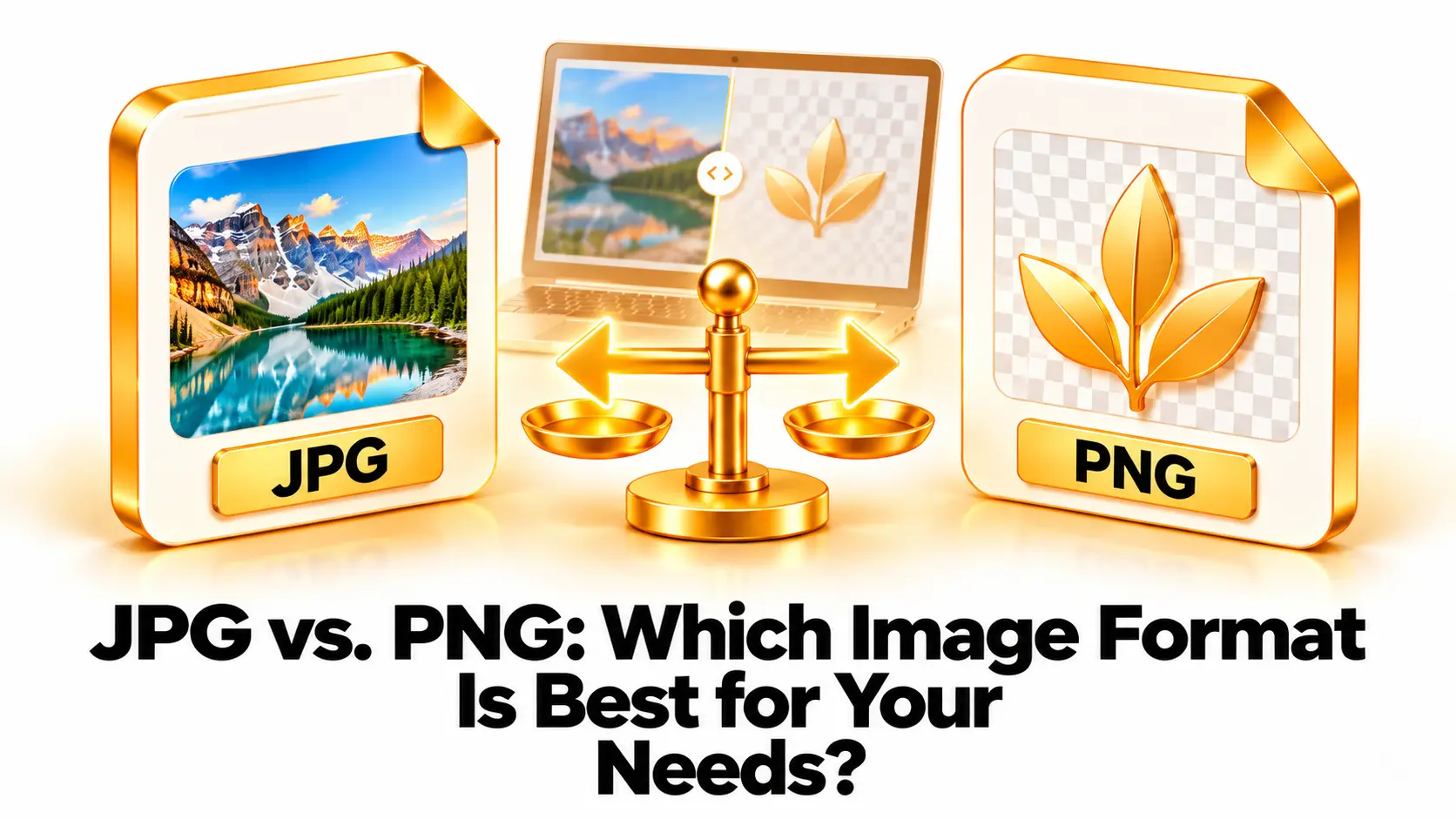
JPG and PNG are two widely used image formats, but they work differently. JPG is popular for photographs because it can create relatively small files. PNG is often chosen for graphics that need sharp edges or a transparent background.
Neither format is best for every image. Your choice depends on the type of picture, how you plan to use it, and whether file size or image detail matters most. Understanding their differences can help you choose a format that looks good and works well on your website, phone, or design project.
This guide compares JPG and PNG quality, compression, transparency, file size, and common uses. It also explains how to convert an image and avoid common mistakes.
What Is JPG?
JPG, also written as JPEG, is a raster image format commonly used for photographs and detailed images. It uses lossy compression, which reduces file size by removing some image information. This can make a photo much easier to upload, send, or store.
The amount of compression depends on the quality setting used when the JPG is saved. A high-quality setting usually preserves more visible detail and creates a larger file. A lower setting creates a smaller file, but it can make edges look rough or add block-like artifacts, especially in areas with fine detail.
JPG is supported by most phones, computers, browsers, cameras, and image-editing programs. It is a practical choice when you want a photo that loads quickly or takes up less storage. For more details about the format, read Wikipedia’s overview of JPEG.
What Is PNG?
PNG, or Portable Network Graphics, is a raster image format that uses lossless compression. This means it can reduce file size without discarding the image data in the way JPG compression does. PNG is useful when you want to keep crisp lines, text, or graphic details intact.
PNG also supports transparency. A transparent area can let a webpage’s background, another image, or a design layer show through. This makes PNG a common choice for logos, icons, interface graphics, and cutout images that need to sit on different backgrounds.
PNG files can be larger than JPG files when they contain complex photographic images. However, the result depends on the image itself: a simple graphic with large areas of flat color may compress efficiently as PNG. Learn more in Wikipedia’s overview of PNG.
JPG vs. PNG: Main Differences
The table below summarizes common differences. The best result still depends on the image and how it will be used.
| Feature | JPG | PNG |
|---|---|---|
| Compression | Lossy | Lossless |
| Typical file size | Often smaller for photographs | Can be larger for detailed photos; efficient for some simple graphics |
| Transparency | Does not support transparent backgrounds | Supports transparency |
| Best suited to | Photos and detailed images for sharing | Logos, icons, screenshots, and transparent graphics |
| Repeated saving | Repeated lossy saves can reduce quality | Saving as PNG does not add JPG-style compression loss |
| Compatibility | Very widely supported | Very widely supported |
Which Format Has Better Image Quality?
PNG can preserve image data without lossy compression, which makes it useful for graphics with text, fine lines, sharp edges, or transparent areas. A PNG is less likely to show compression artifacts caused by saving at a low JPG quality setting.
That does not mean PNG always looks better for every purpose. A high-quality JPG can look excellent, particularly for photographs. JPG compression is designed to make photo files smaller while keeping the result visually pleasing at suitable settings.
Converting a JPG to PNG does not restore detail that was removed when the JPG was created. The PNG will preserve the current pixels without adding another round of JPG compression, but the original JPG compression artifacts remain. If you have the camera original or an uncompressed source, start with that file instead.
For images you expect to edit repeatedly, keep a high-quality master file and export a JPG copy for sharing when needed. This lets you return to the master rather than repeatedly saving an already compressed JPG.
Which Format Creates Smaller Files?
JPG often creates smaller files for photographs because it removes some image data to reduce size. This is useful for websites, social media, email, and devices with limited storage. The exact size depends on the image dimensions, JPG quality setting, and detail in the picture.
PNG preserves image data through lossless compression, so complex photos can produce larger files than JPG versions. But a PNG containing a simple logo, icon, or graphic with flat colors may be quite compact. File size depends on the image content, so it is worth comparing the actual exported files.
If you need to make an image smaller, consider reducing its pixel dimensions if a smaller display size is acceptable. Lowering dimensions can reduce the amount of data without changing the format. For JPG, you can also adjust the quality setting gradually and compare the result.
For a website, balance image clarity with loading speed. Use dimensions appropriate for the space where the image appears, and avoid uploading an unnecessarily large image that must be displayed at a much smaller size.
Transparency and Backgrounds
One of the clearest reasons to choose PNG is the need for a transparent background. A logo with a transparent background can sit on a colored webpage without a white rectangle around it. The same feature is useful for icons, product cutouts, overlays, and layered designs.
JPG does not support transparency. If you save an image with a transparent background as JPG, transparent areas are usually filled with a solid color, often white. If the background must remain transparent, use PNG or another format that supports transparency and is accepted by your software or website.
Transparency is not the same as removing a background. If an image already has a solid background, changing it to PNG will not automatically make that background transparent. You need to remove the background in an image editor or use a background-removal tool, then save the result in a format that preserves transparency.
How to Choose the Right Format
Choose a format based on what the image contains and where you plan to use it. Think about whether you need transparency, how quickly the image should load, and whether it contains photographic detail or graphic elements.
- Choose JPG for photographs when you want smaller files for sharing, websites, or general storage.
- Choose PNG for transparency when the image needs to blend into a webpage or another design.
- Choose PNG for sharp graphics such as logos, icons, screenshots, charts, and images with text or crisp lines.
- Keep a high-quality master if you expect to edit the image again. Export a separate JPG copy when you need a smaller version.
- Check platform requirements if a website, printer, client, or design tool specifies an image format.
For many photos, JPG offers a useful balance between quality and file size. For transparent graphics and images with sharp edges, PNG is often more suitable. If you are unsure, export both versions and compare their appearance and file sizes.
How to Convert JPG and PNG Images
You can convert images using a desktop image editor or a browser-based converter. For an online option, visit Convertig and choose the relevant image conversion tool if available.
- Keep a copy of the original image. This lets you try another format or setting if the first result is not suitable.
- Choose a trusted converter. If the image is private or sensitive, review the tool’s privacy information or use offline software.
- Add the image file. Confirm that you selected the correct image and that it displays properly in the tool.
- Select JPG or PNG. Choose JPG for a compact photo or PNG when you need transparency or lossless saving.
- Review the export settings. For JPG, choose a quality setting that keeps the image clear. For PNG, confirm that transparency is preserved if you need it.
- Convert and download the result. Save the new image with a clear filename so you can distinguish it from the original.
- Check the output. Open the file, inspect important details, and compare its size with the source.
If you are converting JPG to PNG, remember that the PNG will not regain details lost in the JPG. If you are converting PNG to JPG, check the background before exporting and make sure a solid background is acceptable.
Common Image Format Mistakes
Expecting JPG-to-PNG conversion to improve quality: PNG can avoid additional lossy compression when you save the converted file, but it cannot recover image information already removed from the JPG.
Saving a transparent image as JPG: JPG cannot keep transparent areas. The background may become a solid color, which can change the appearance of a logo or cutout.
Using PNG for every photograph: PNG can create much larger files for complex photos. If transparency and pixel-perfect graphic edges are not needed, a suitable-quality JPG may be easier to share and load.
Saving a JPG repeatedly: each lossy save can reduce image quality. Keep a master copy and export a new JPG from it rather than editing and resaving the same JPG many times.
Ignoring image dimensions: choosing the right format will not fix an image that is much larger than needed. Resize it to suit its intended display area when appropriate.
Frequently Asked Questions
Is PNG better than JPG?
PNG is often better for transparency, text, sharp lines, and graphics that should avoid lossy compression. JPG is often better for photographs when a smaller file is useful. The right choice depends on the image and its purpose.
Does PNG always have better quality?
PNG uses lossless compression, but it cannot restore detail missing from its source. A high-quality JPG can also look very good, especially for photos.
Can JPG images have transparent backgrounds?
No. JPG does not support transparency. Use PNG or another supported format that keeps a transparent background.
Why is my PNG larger than my JPG?
PNG preserves image data and can create large files for detailed photographs. JPG uses lossy compression, which often reduces photo file size more.
Will converting PNG to JPG reduce quality?
It can, because JPG uses lossy compression. The conversion may also replace transparent areas with a solid background. Choose a suitable quality setting and check the result.
Which format should I use for a website?
Use JPG for many photographic images when smaller file size is important. Use PNG for graphics that need transparency or crisp text and edges. Also follow the website’s supported formats and image-size guidance.
Final Checklist
Choose JPG for many photos and situations where a smaller file is useful. Choose PNG for transparent backgrounds, sharp graphics, and images where lossless saving matters. Keep an original or high-quality master before converting, and check the output’s appearance and file size.
There is no single best image format for every project. Matching the format to the image helps it look right, load efficiently, and work as intended on your website or device.